Connecting to Databricks
Connecting to Databricks from Excel
To connect to Databricks from Excel, you will need to use the Databricks ODBC driver. We have pre-configured the Databricks ODBC driver for you to use.
To load a table from Databricks into Excel, follow these steps:
- Open Excel
- Click on the Data tab
- Click on Get Data
- Click on From other sources
- Click on From ODBC
- Select the Databricks DAL ODBC driver from the list of available drivers
- Click OK
- Click on the Windows tab as we have single sign-on enabled
- Ensure that the Use my current credentials radio button is checked
- Click Connect
- You will be presented with a list of schemas and tables in Databricks. Select the schema and table you want to import into Excel.
If you are familiar with SQL, you can also write a SQL query to import data from Databricks into Excel. It is recomended that you write your sql in the Databricks sql interface and then copy it into the excel interface. In the Databricks sql interface there is an AI assistant that can help you write your sql queries, no experience needed.
- Open Excel
- Click on the Data tab
- Click on Get Data
- Click on From other sources
- Click on From ODBC
- Select the Databricks DAL ODBC driver from the list of available drivers
- Click Advanced options
- Enter your SQL query in the SQL statement box
- Click OK and your data will be imported into Excel
Connecting to Databricks from Power BI
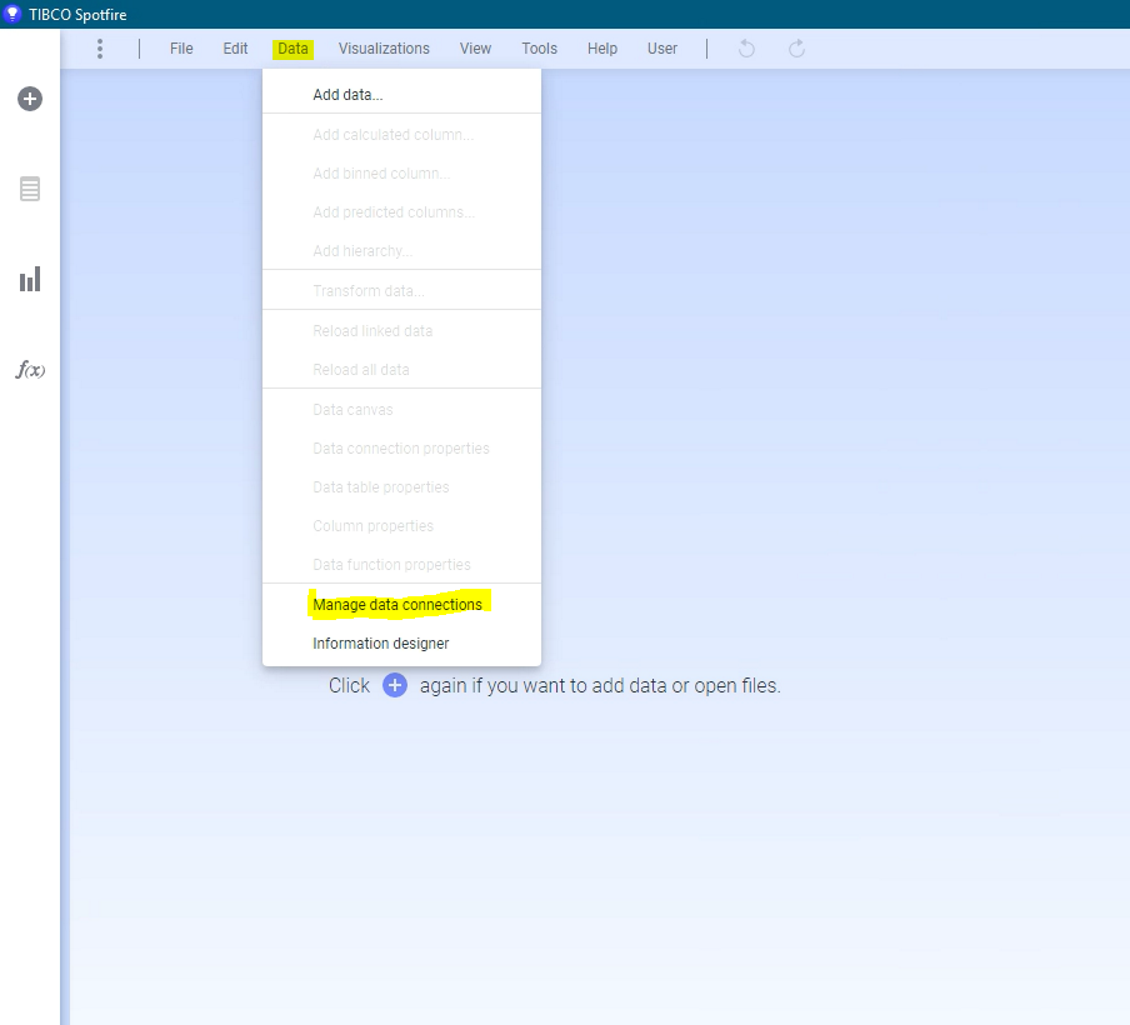
Connecting to Databricks from Spotfire
- Click Data in the menu
- Select Manage Data Connections