WIPA App User Guide
1. Accessing the Application
Users can access the app via the app link shared when the user is invited to use the application.
WIPA App Link: WIPA Databricks App
2. Home Page
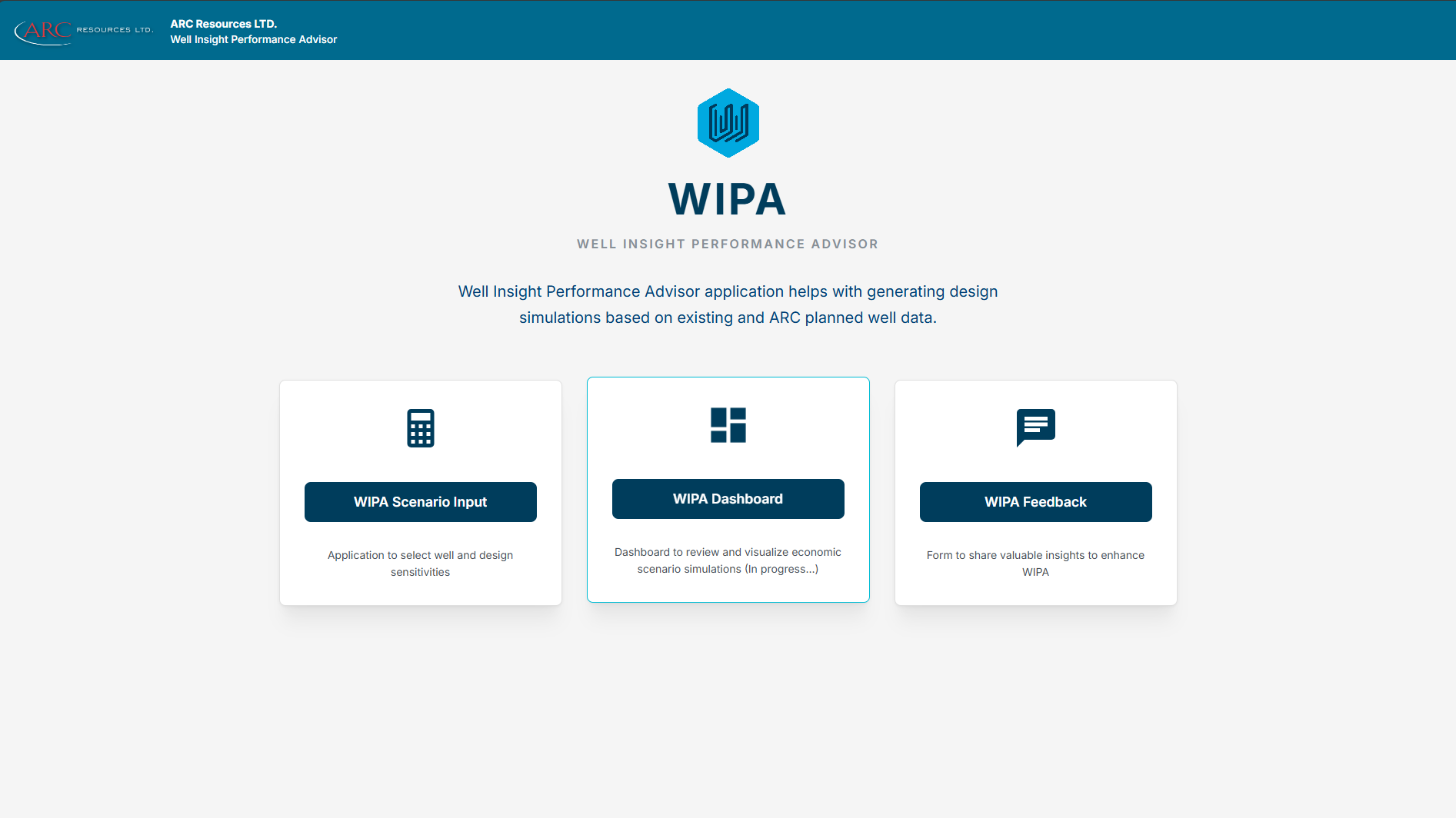
a. WIPA Scenario Input: a link to enable the user to start generating design simulation
b. WIPA Dashboard: a link to a dashboard to quickly review and visualize the results of the most economic designs from a ran simulation.
❗ This feature will be available in a future update
c. WIPA Feedback: a link that allows users to provide feedback regarding the WIPA application and model (users will be asked to enable popups when they click the link for the first time).
3. Volumes Prediction – Well Selection
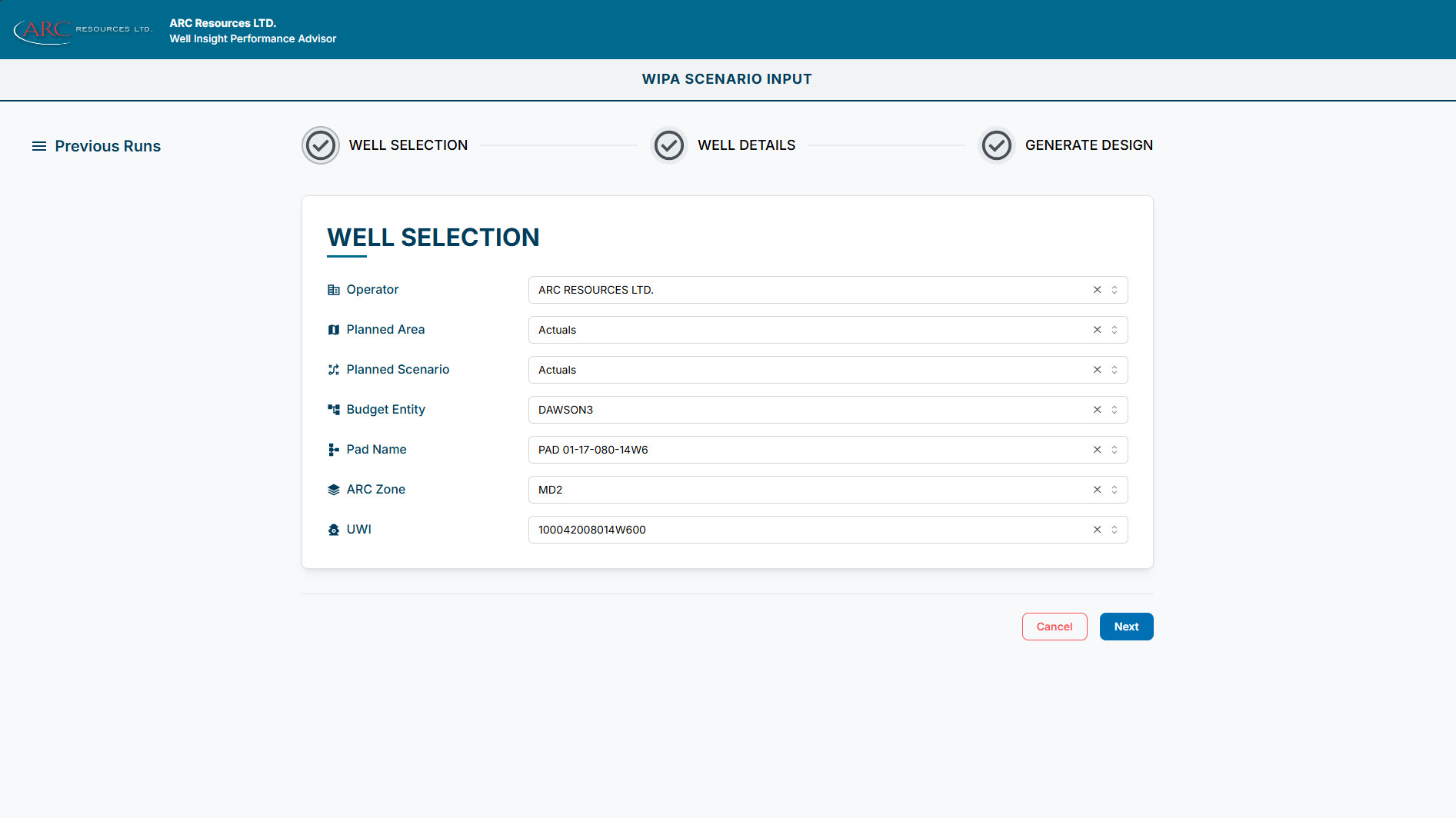
a. Use the drop‑down lists to select a well to use for simulating your designs.
Selection must be completed in the following order:
i. Operator
ii. Planned Area
iii. Planned Scenario
iv. Budget Entity
v. Pad Name
vi. ARC Zone
vii. UWI
b. Once all fields are selected, click “Next” to review the well details.
c. Click “Cancel” at any time to navigate back to the home page.
4. Volumes Prediction – Well Details
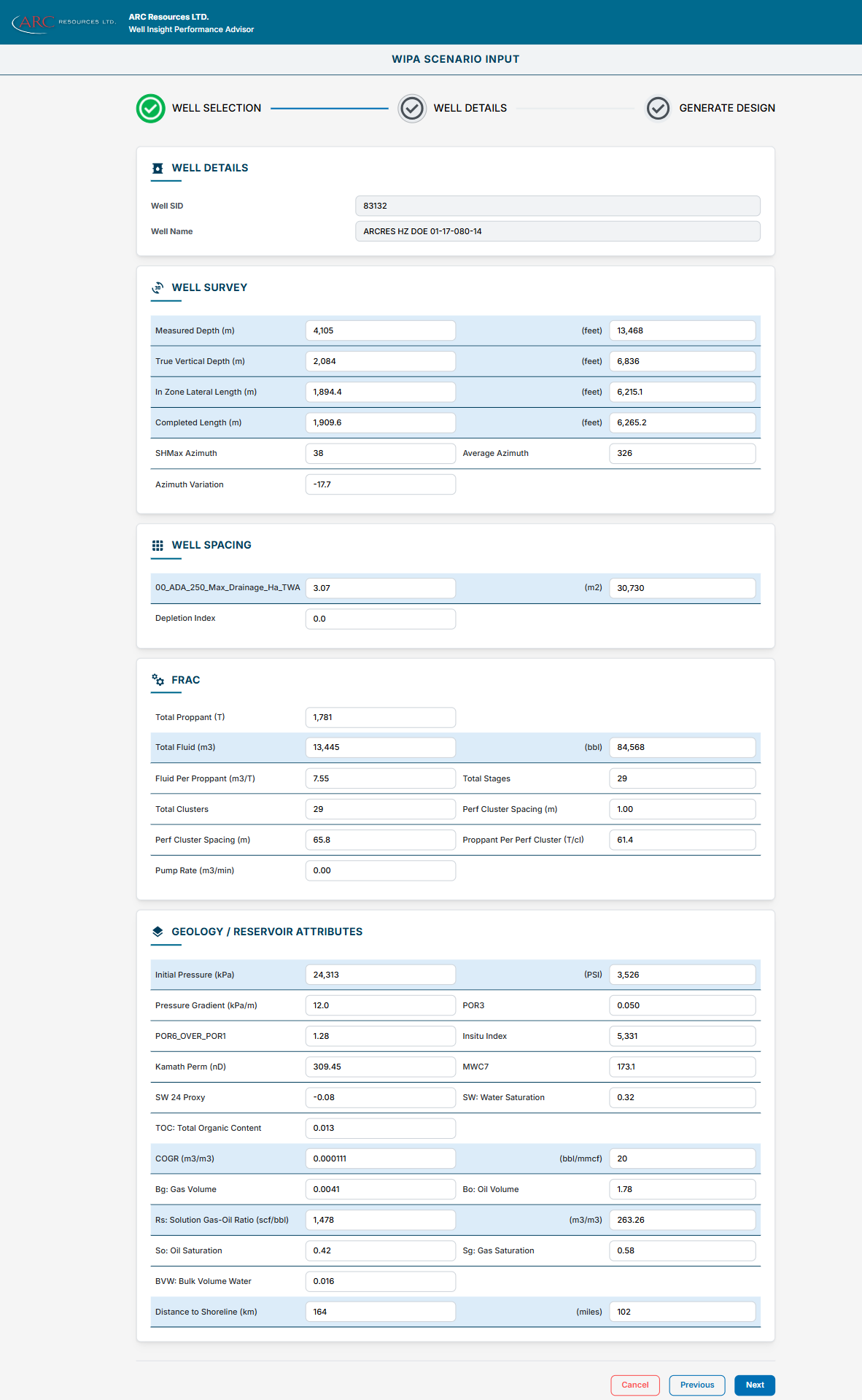
a. Review the well details, and click “Next” to proceed to the “Generate Design” page.
b. Click “Previous” to navigate to the previous page to select a different well.
c. Click “Cancel” at any time to navigate back to the home page.
5. Volumes Prediction – Generate Design
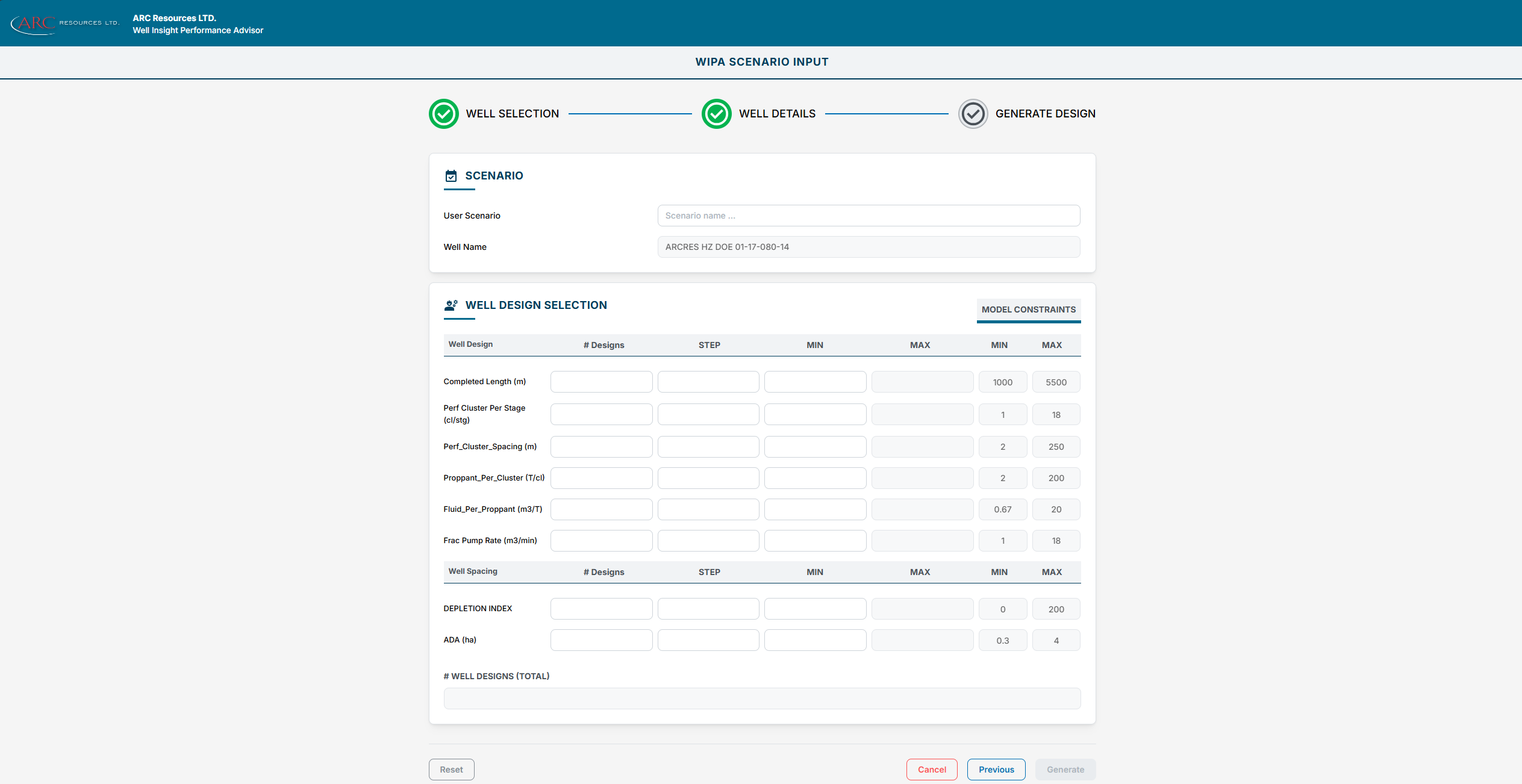
a. Populate all editable fields (User Scenario, # Designs, STEP, and MIN)
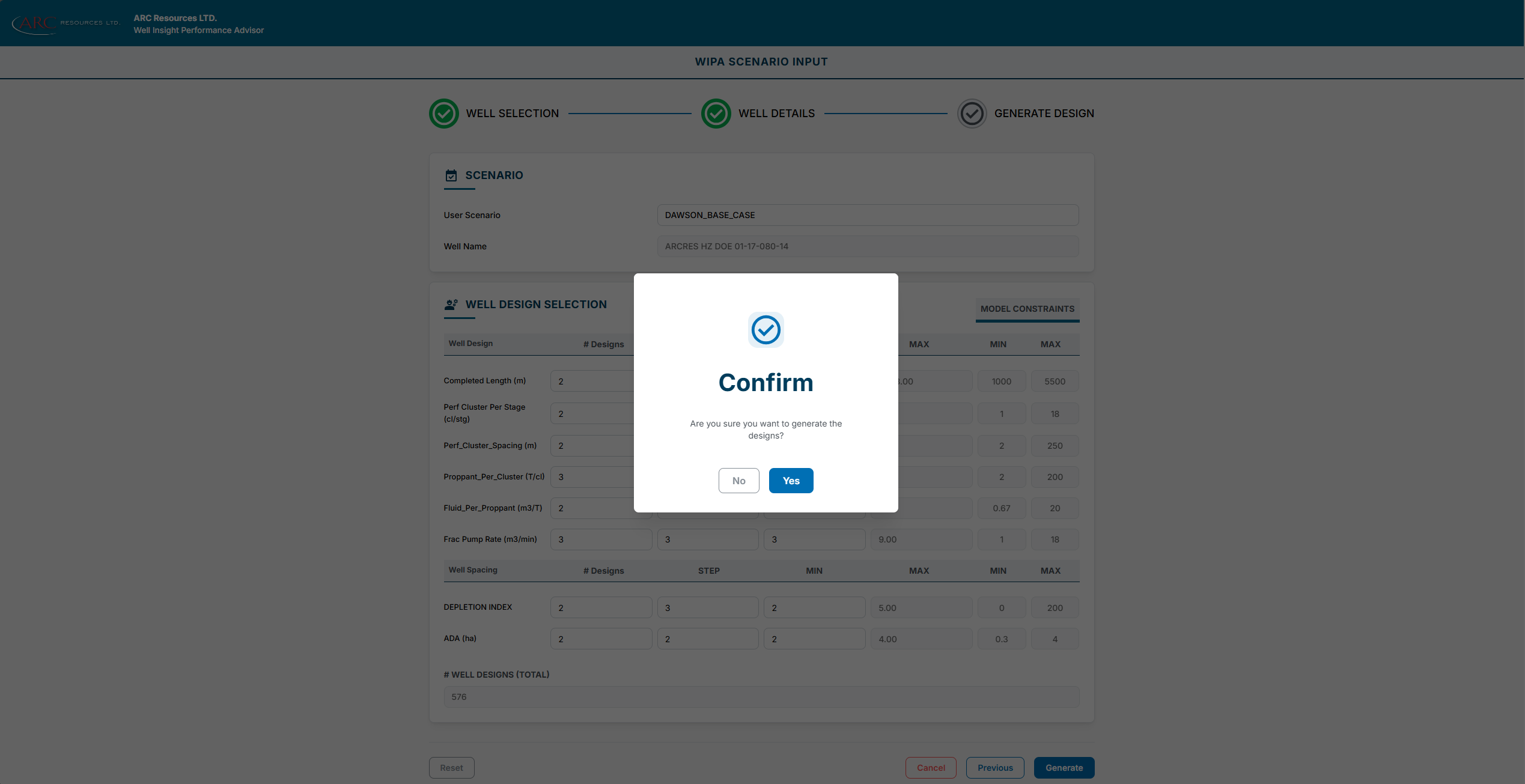
b. Once all fields are populated, click “Generate” to send the design parameters to the model to generate the required designs.
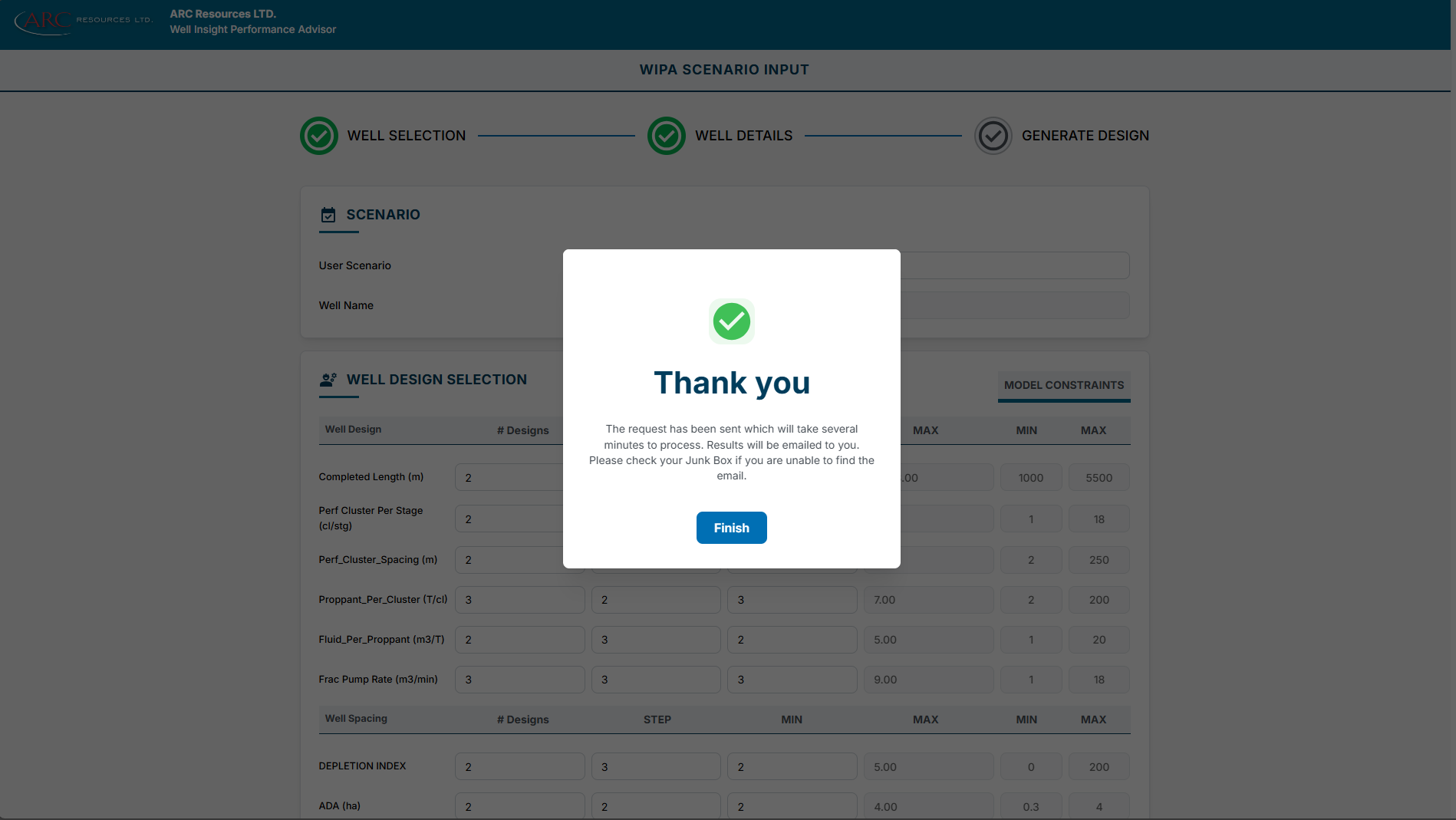
In the “Confirm” popup, click “Yes” and wait for the confirmation that the submission has completed, or click “No” to cancel design generation.
c. Click “Previous” to navigate to the previous page to review well details.
d. Click “Cancel” at any time to navigate back to the home page.
e. Click “Reset” at any time to clear all input fields.
6. Email Notification
Once the model generates the required designs, an email will be sent to your ARC email address with details on how to access the results.
The e‑mail will be sent by: azure.dataanalytics.alert@arcresources.com
7. Previous Runs
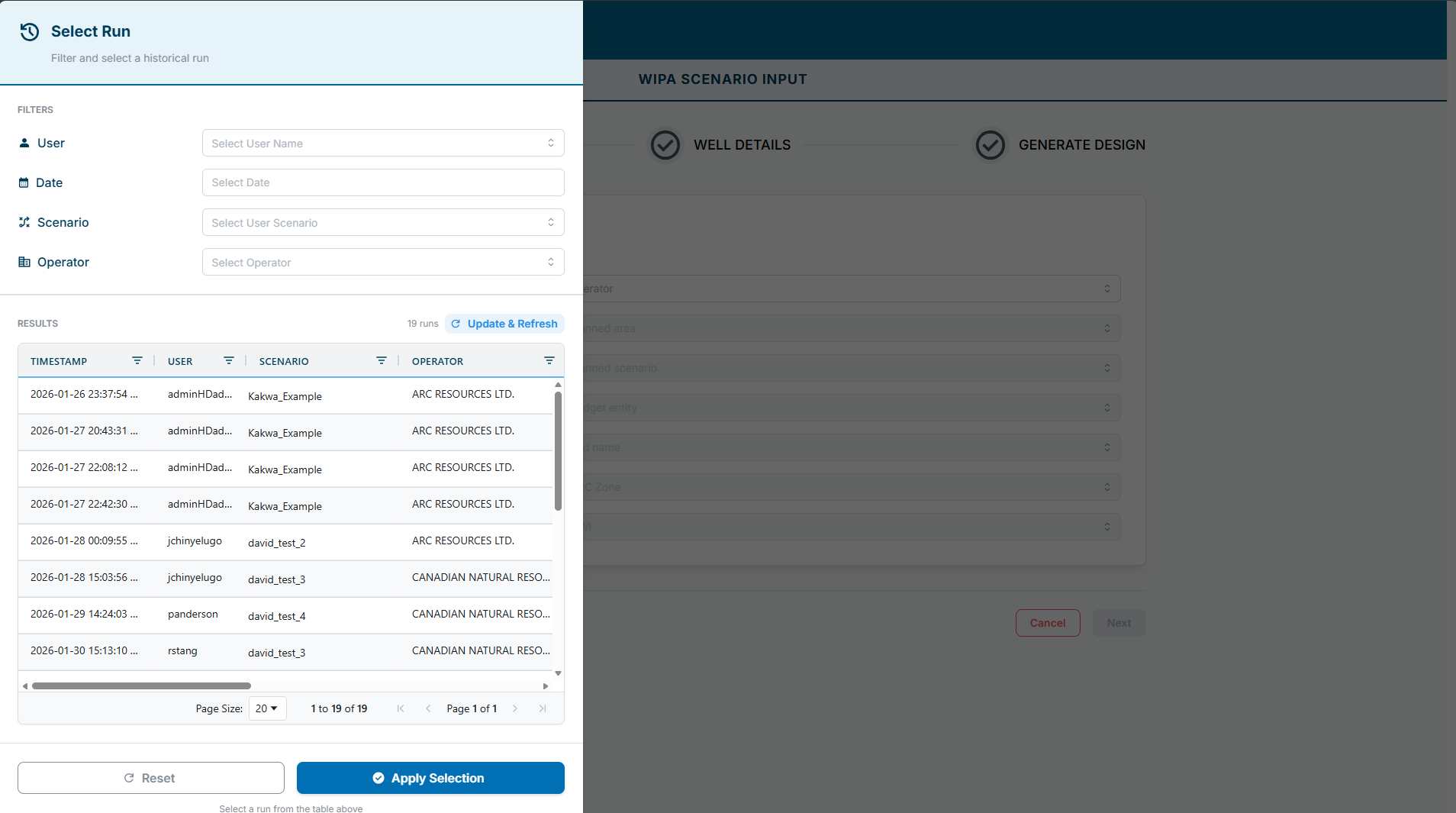
a. On the Well Selection page, click “Previous Runs” to open a side panel displaying your past simulation submissions. The table includes:
i. User who submitted
ii. Date submitted
iii. Scenario name
iv. Operator information
b. Use the User, Date, Scenario, and Operator filters at the top of the panel to filter the table below.
c. To reuse a previous run, select it from the table and click “Apply Selection”.
d. To reset the filters to show all previous runs, click “Reset”
e. All inputs in Steps 3 & 5 will be automatically populated with the values from that run, allowing you to quickly re‑run or adjust a previous scenario without reentering all parameters.
f. Click Update & Refresh on the top‑right of the table to reload the table with the latest submissions.